


Dealing with computer software can sometimes feel daunting. When it comes to system-level programmes like Intel’s storage management solution, proper handling becomes essential.
This guide provides a clear, step-by-step approach for the Intel RST removal process. Our methodology prioritises your system’s stability and data security above all else.
We understand the importance of following correct procedures. A haphazard uninstall IRST attempt could lead to unwanted complications or even data loss.
Our instructions cover multiple removal methods. We also include key preparatory checks and important steps to take after completion.
By following this structured approach, you can ensure a smooth transition. You can proceed with confidence, knowing your system remains protected throughout the entire process.
Understanding Intel Rapid Storage Technology
Intel Rapid Storage Technology acts as a bridge between your computer and storage devices. It helps manage data flow, which is key when using multiple drives. Many computers come with IRST pre-installed for advanced storage options.
This technology works with your motherboard to enhance storage beyond basic levels. Knowing if IRST is needed for your setup is important before removing it.
What IRST Does and How It Functions
Intel Rapid Storage Technology is a management layer for your storage. It works with Intel RST drivers to talk to your operating system and storage devices. This allows for features not available with standard drives.
IRST manages data across drives through your motherboard’s SATA controllers. It can boost read/write speeds or protect data, depending on your setup. This technology is key for systems with SSDs and HDDs.
Related Posts:
- How to Use Technology in an Elementary Classroom…

- What Are the Mobile Technologies From 5G to NFC and Beyond

- What Is Moonshot Technology Ambitious and…

- What Is P2P Technology Peer-to-Peer Networks and…

- How Technology Will Impact Education The Future of Learning

- How to Find the Technologies Used in a Website Tools…

For systems with SSDs and HDDs, IRST enables smart caching. It stores often-used data on the SSD and less critical data on the HDD. This process happens automatically without needing you to do anything.
Typical Setups Using IRST
Users often find IRST in systems from Dell or HP, or on motherboards that support RAID. These setups use multiple drives together, not as single units.
RAID is the most common use of IRST. It makes multiple drives act as one, improving performance or protecting data. The RAID level determines the benefit, whether it’s speed or safety.
Gaming PCs and workstations often use RAID 0 for better performance. Business systems might use RAID 1 for backup protection. Knowing your setup helps decide if removing IRST is safe.
As one source advises:
“If you don’t have a RAID setup (and don’t plan to have one in future) then you don’t need Intel RST.”
For systems with a single drive in AHCI mode, IRST offers little benefit. These systems can work well without it. But, it’s wise to check with the manufacturer before removing it. Here’s a table showing common setups and IRST needs:
| Storage Configuration | Drive Count | IRST Typically Required | Primary Benefit |
|---|---|---|---|
| Single Drive (AHCI) | 1 | No | Basic storage |
| RAID 0 (Striping) | 2+ | Yes | Performance |
| RAID 1 (Mirroring) | 2+ | Yes | Data protection |
| Intel Smart Response | 2 (SSD+HDD) | Yes | Caching performance |
Motherboard makers often include IRST for systems with Intel chipsets. Even if you’re not using these features now, the software might be there for later. Checking your BIOS can show if IRST is needed for your system.
Why You Might Need to Uninstall IRST
Intel Rapid Storage Technology has its uses, but sometimes it needs to go. Knowing when is key to keeping your system running smoothly.
Addressing Performance or Compatibility Problems
Many face IRST compatibility issues that mess with their system. These can cause driver problems, blue screens, or sudden crashes.
Some users see performance problems with IRST on. It can slow things down instead of speeding them up.
One user saw big improvements after turning off related tech:
“…my Windows startup actually became 2X faster simply by disabling VMD!!!”
Another issue is third-party software not working well with IRST. This can make managing SSDs harder.
Moving to Other Storage Configurations
Switching storage setups often means getting rid of IRST. Many move from RAID to AHCI mode for easier management and better compatibility.
Systems with Intel VMD might do better without these features. It could make things run smoother and faster.
The table below shows when removing IRST is a good idea:
| Scenario | Primary Benefit | Recommended Action |
|---|---|---|
| System instability issues | Improved reliability | Uninstall IRST drivers |
| Slow boot times | Faster startup | Disable VMD in BIOS |
| Software conflicts | Better compatibility | Switch to AHCI mode |
| Simplified storage management | Easier maintenance | Remove RAID configuration |
Think about what you need before deciding to remove IRST. Look at current problems and future plans.
Preparing for Uninstallation
Before you uninstall Intel Rapid Storage Technology, make sure you’re ready. This ensures a smooth process and keeps your data safe. Taking these steps helps avoid risks and gives you options for recovery if needed.
Backing Up Critical Data
Protecting your information is key. Always backup data before uninstall to avoid losing important files. Here are some reliable ways to keep your files safe:
Recommended Backup Methods
There are many backup strategies, each with its own level of protection. The best approach is to use a mix of methods for the highest security.
- File History: Windows’ built-in tool that automatically backs up files to external drives
- System Image Backup: Creates a complete snapshot of your entire system
- Manual File Copying: Direct transfer of important files to external storage
- Cloud Storage Services: Online platforms like OneDrive or Google Drive for off-site backup
Experts always stress the need for thorough preparation. As one IT professional noted:
Creating proper backups before system changes is not just a good idea—it’s a must for anyone working with computers.
For quick recovery, create a system restore point first. This Windows feature lets you go back to previous system settings without losing personal files.
Checking for System Dependencies
IRST might be essential for your storage setup, like RAID or SSD optimisations. Check if your system depends on it before you remove it.
| Configuration Type | Dependency Check | Action Required |
|---|---|---|
| RAID Arrays | Check Disk Management for RAID volumes | Back up data and prepare to reconfigure storage |
| SSD Caching | Review storage properties in IRST interface | Disable caching before uninstallation |
| Standard AHCI | Confirm drive operation mode in BIOS | Usually safe for removal without special steps |
Check your BIOS/UEFI settings to see your storage controller mode. Systems with RAID usually need IRST, while AHCI mode systems can usually remove it safely.
This check helps avoid problems like not being able to boot or losing access to data. If unsure, check your motherboard’s manual for specific advice.
How to Remove Intel Rapid Storage Technology Using Windows Settings
Removing Intel Rapid Storage Technology through Windows Settings is easy. It works well on all Windows versions. It uses the system’s tools for a clean uninstall.
Step 1: Accessing the Uninstallation Menu
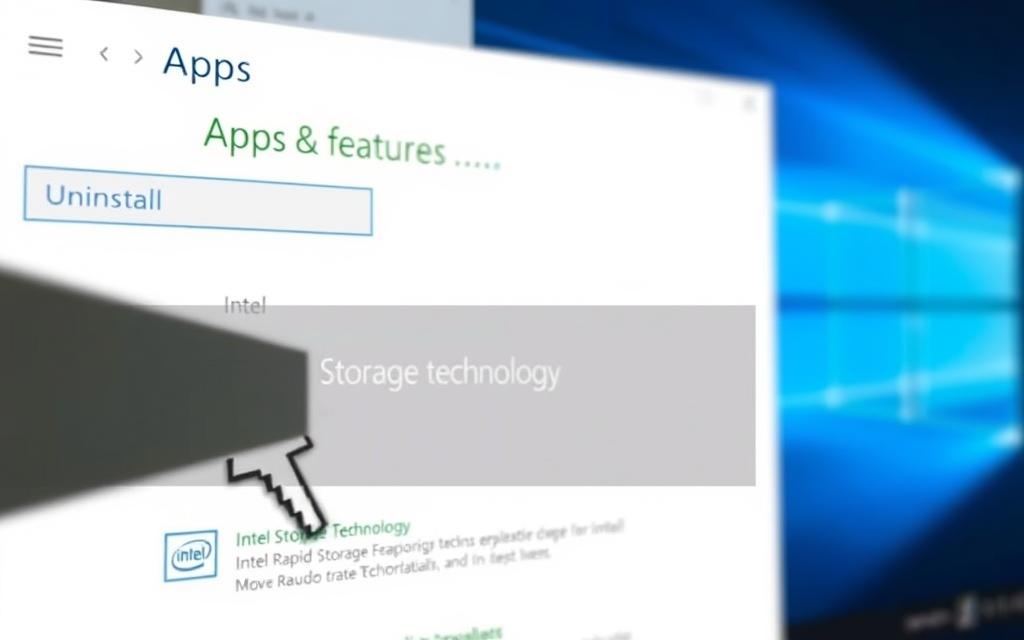
Start by opening the Windows Settings menu. You can do this by clicking the Start button and choosing the Settings cog icon. Or, press Windows key + I at the same time.
Navigating to Programs and Features
In Settings, go to “Apps” and then “Apps & features.” On older Windows, it’s “Programs and Features” in the Control Panel. Here, you’ll see all apps installed on your computer.
Step 2: Selecting and Removing IRST
Look through the list of programs to find Intel Rapid Storage Technology. The list is sorted alphabetically, so Intel apps are together.
Identifying the Correct Software Version
Make sure you pick the right IRST version. There might be other Intel apps in the list. Look for “Intel Rapid Storage Technology” with a version number.
Step 3: Completing the Uninstallation Process
After finding the right software, click on it and choose “Uninstall.” The system will get ready and start the uninstall wizard.
Following On-Screen Prompts
Follow the uninstall wizard’s instructions carefully. You might see dialogues asking if you’re sure to remove the software. Just go through them until it’s done.
When it’s finished, you’ll get a message saying it was successful. This way, you can remove software safely without harming your system.
How to Remove Intel Rapid Storage Technology via Device Manager
Device Manager is great for removing Intel Rapid Storage Technology when usual methods don’t work. It’s perfect for dealing with hard-to-remove drivers or systems with Intel VMD enabled.
Step 1: Opening Device Manager
To use Device Manager, you need admin rights. You can start it in different ways, depending on your Windows version.
Using Run Dialog or Control Panel
Press Windows Key + R to open the Run dialog. Type devmgmt.msc and hit Enter. Or, go to Control Panel, then System and Security, and find Device Manager under System.
Step 2: Locating IRST Drivers
After opening Device Manager, find the Intel storage technology components. They are usually in a specific category.
Finding Storage Controllers Section
Look through the list and expand the Storage controllers section. Search for “Intel Rapid Storage,” “Intel VMD,” or similar. These are the drivers you need to remove.
Step 3: Uninstalling Drivers and Software
Right-click each device and choose Uninstall device. Be careful, as a warning will pop up.
Ensuring Complete Removal
In the uninstall dialog, do not check “Attempt to remove the driver software for this device.” This step avoids system problems and lets you reconfigure BIOS later. Restart your computer after removing all devices.
| Method | Best For | Key Consideration |
|---|---|---|
| Windows Settings | Standard removal | Removes main application |
| Device Manager | Driver-level removal | Preserves driver files |
| BIOS Disable | VMD systems | Requires hardware access |
Using Device Manager ensures a complete removal. It targets drivers without deleting important software files, keeping your system safe.
After Uninstallation: Essential Steps
Removing Intel Rapid Storage Technology is a big step. But, you’re not done yet. These steps help your system work well without IRST. They keep your computer running smoothly.

Restarting Your Computer
Restarting your system is the first thing to do. This reboot lets Windows update drivers and apply changes. It’s key for your computer to work right.
When you restart, your system:
- Uses standard SATA/AHCI drivers instead of IRST
- Updates the registry
- Changes storage settings
Don’t skip the restart. It prevents driver problems and keeps your system stable. Save your work first.
Confirming IRST is Removed
Checking if IRST is gone is very important. To make sure, follow these steps:
- Go to Settings > Apps > Apps & features
- Look for Intel Rapid Storage Technology – it should be gone
- Open Device Manager (devmgmt.msc)
- Check “Storage controllers” for standard SATA/AHCI controllers, not IRST
This check makes sure IRST is fully removed. If you find any left behind, use special uninstaller tools.
Optimising System Settings Post-Removal
With IRST gone, you can make your system better. These changes help your system run well with the new setup:
First, let Windows Update find and install the right drivers. Microsoft’s drivers are usually very good.
Then, check your BIOS/UEFI settings:
- Make sure SATA mode is set to AHCI (not RAID)
- Check that boot order is right
- Make sure all drives are listed
Lastly, watch your system’s performance in Task Manager. Look at disk activity and how fast it responds. Use benchmarking tools for detailed comparisons.
These steps make sure your system works great without Intel Rapid Storage Technology. Doing these steps right keeps your system stable and fast, avoiding future problems.
Troubleshooting Uninstallation Problems
Some users face issues when uninstalling software. This section helps you solve these problems safely.

Resolving Common Error Messages
Error messages can pop up during uninstallation. Knowing what they mean helps fix them.
The “software in use” error is common. It happens when system processes use IRST components. Close all apps and try again. If it doesn’t work, restart in Safe Mode.
Permission errors happen when you lack admin rights. Log in as an admin. Right-click the uninstaller and choose “Run as administrator.”
Dependency errors mean other programs use IRST. Look for apps linked to storage management. Disable them while uninstalling to avoid issues.
Cleaning Up Residual Files and Registry Entries
After uninstalling, some files and registry entries might stay. These can cause problems with new setups.
Create a system restore point before cleaning up. This is a safety measure. Be careful with registry editing.
To find leftover files, check these places:
- C:\Program Files\Intel\RST
- C:\Program Files (x86)\Intel\RST
- C:\Windows\System32\drivers
For registry cleanup, go to these spots in regedit:
- HKEY_LOCAL_MACHINE\SOFTWARE\Intel\RST
- HKEY_LOCAL_MACHINE\SYSTEM\CurrentControlSet\Services\iaStor
- HKEY_LOCAL_MACHINE\SYSTEM\CurrentControlSet\Services\iaStorV
Use trusted cleanup tools instead of manual deletion. They safely remove unwanted entries. Many users on the Tom’s Hardware forum recommend them.
Intel doesn’t check all third-party solutions. They disclaim all warranties, including for merchantability and fitness for purpose.
Always check a cleanup tool’s reputation before using it. Read recent reviews and check the developer’s background. Forums can give good advice on which tools work best.
Conclusion
Following this guide helps you safely remove Intel Rapid Storage Technology. Start by backing up your data and checking your system. This makes the uninstallation process easier.
You can choose from two main methods: using Windows Settings or Device Manager. Both offer clear steps to help you remove IRST confidently.
After removing IRST, make sure to restart your computer. This ensures your system works well without any issues. Also, check that everything is removed properly to avoid problems.
This guide can help fix performance problems and let you use different storage setups. Your system will now use standard AHCI drivers. This might make it work better with other software and hardware.
Use this knowledge to keep your system running smoothly. You can also find the best storage solutions for your needs. The skills you learn here will help you with similar tasks in the future.
FAQ
What is Intel Rapid Storage Technology and why might I need to remove it?
Intel Rapid Storage Technology (IRST) helps manage storage devices, like in RAID setups for better performance or data safety. You might remove it if your system is unstable, drivers clash, or if you want to use standard AHCI settings. This is also true if you need to disable Intel VMD for better tool compatibility, like Samsung Magician.
How do I safely back up my data before uninstalling IRST?
Back up your data by using Windows’ File History, creating a system image, or copying important files to an external drive or cloud. Also, make a System Restore point. This is a good first step in case uninstalling IRST causes problems.
What are the main methods to uninstall Intel Rapid Storage Technology?
You can uninstall IRST through Windows Settings or Device Manager. Windows Settings is good for a standard uninstall. Device Manager is needed for drivers or Intel VMD, ensuring a clean uninstall.
What should I do if I encounter errors during the uninstallation process?
If you get errors like permission issues or software in use, try closing apps or running the uninstaller as an admin. For tough issues, you might need to manually remove files or registry entries. But be careful, as this can be risky.
How can I verify that IRST has been successfully removed from my system?
After uninstalling and restarting, check Windows Settings for installed programs. Make sure IRST is gone. Also, look in Device Manager under ‘Storage controllers’. Any IRST or VMD entries should be replaced with standard SATA or NVMe controllers.
Will uninstalling IRST affect my system’s bootability or data integrity?
Removing IRST might cause problems if your system depends on it for booting or storage. This is common in RAID setups or with Intel VMD enabled. Always check dependencies first and have backups ready to avoid data loss or boot failures.
Can I reinstall IRST after removal if needed?
Yes, you can reinstall IRST from Intel’s website or your device’s support page. Make sure it’s the right version for your system, including RAID or specific storage modes.
What performance improvements might I see after removing IRST?
Switching from RAID to AHCI or disabling Intel VMD can lead to faster boot times and better tool compatibility. But, results depend on your hardware and how you use it.
